Integration Guide

Connect Your Tools to zeeproc

Follow these step-by-step instructions to connect your CRM, product analytics, and email tools. Most integrations take under 2 minutes.

Amplitude

Connect your Amplitude project to pull product usage data, feature adoption metrics, and user behavior signals directly into zeeproc.
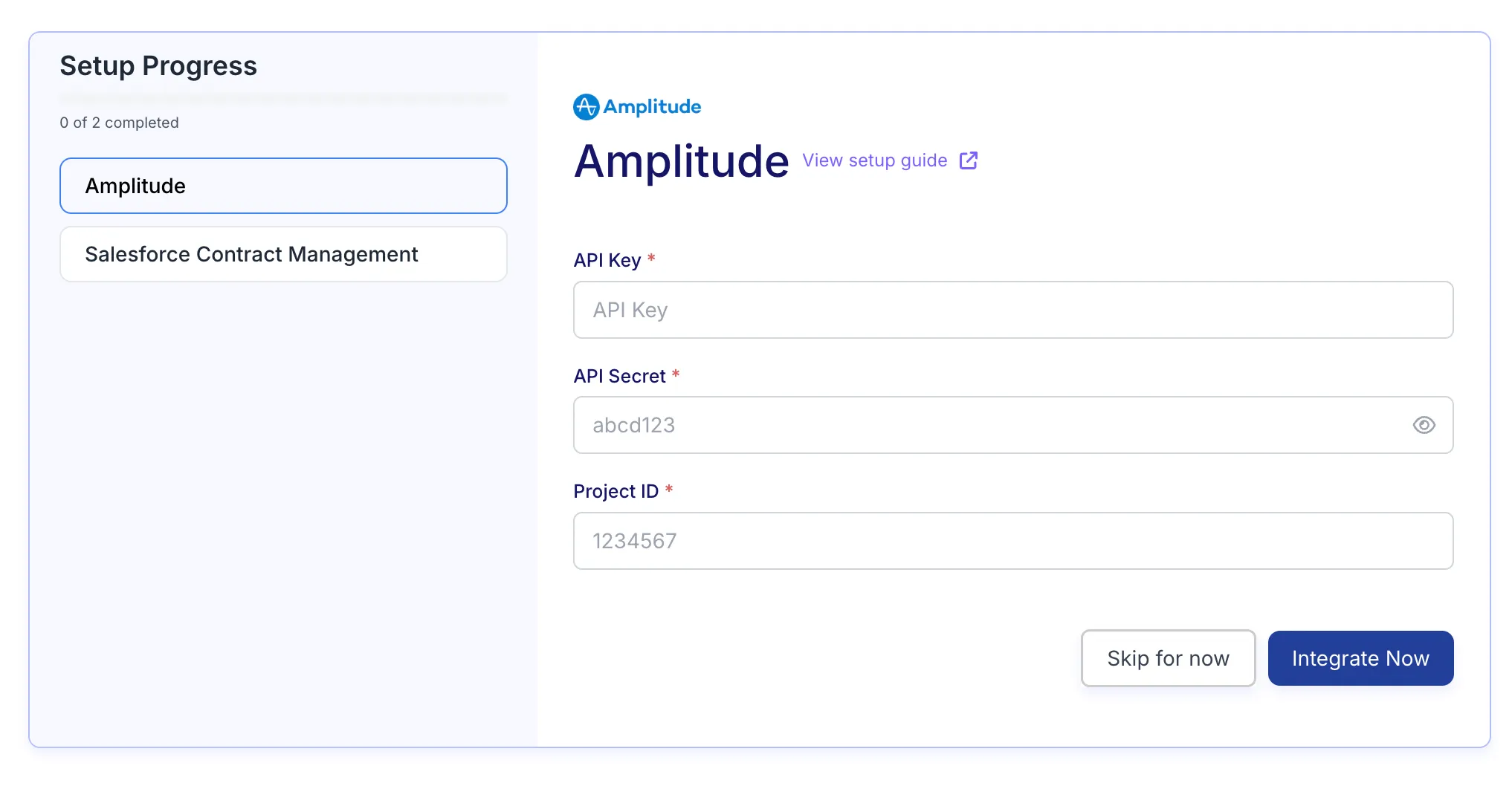
Amplitude integration in zeeproc

How to find your Amplitude credentials

  1. Log in to your Amplitude account at analytics.amplitude.com
  2. Click on Settings (gear icon) in the bottom-left sidebar, then select Projects under your Organization.
  3. Select the project you want to connect. Your Project ID is displayed at the top of the project settings page (a numeric value like 1234567).
  4. Scroll down to the API Key and Secret Key section. Your API Key is visible by default. Click Show to reveal the API Secret.
  5. Copy these three values and paste them into the zeeproc setup form, then click Integrate Now.
You will need Org Admin or Project Admin permissions in Amplitude to access API credentials. If you do not see the API Key section, contact your Amplitude admin.
Send to your developer
Hi,We need to connect Amplitude to zeeproc. Could you provide the following from our Amplitude project settings?1. API Key 2. API Secret 3. Project IDWhere to find them: - Log in to analytics.amplitude.com - Go to Settings > Projects > [Your Project] - The Project ID is at the top of the page - API Key and Secret are under the "API Key" section (click "Show" for the secret)You will need Org Admin or Project Admin access. Once you have these, paste them into zeeproc at: https://app.zeeproc.comThanks!

Mixpanel

Bring in Mixpanel event data, cohorts, and engagement metrics so zeeproc can build a complete picture of product adoption and user health.
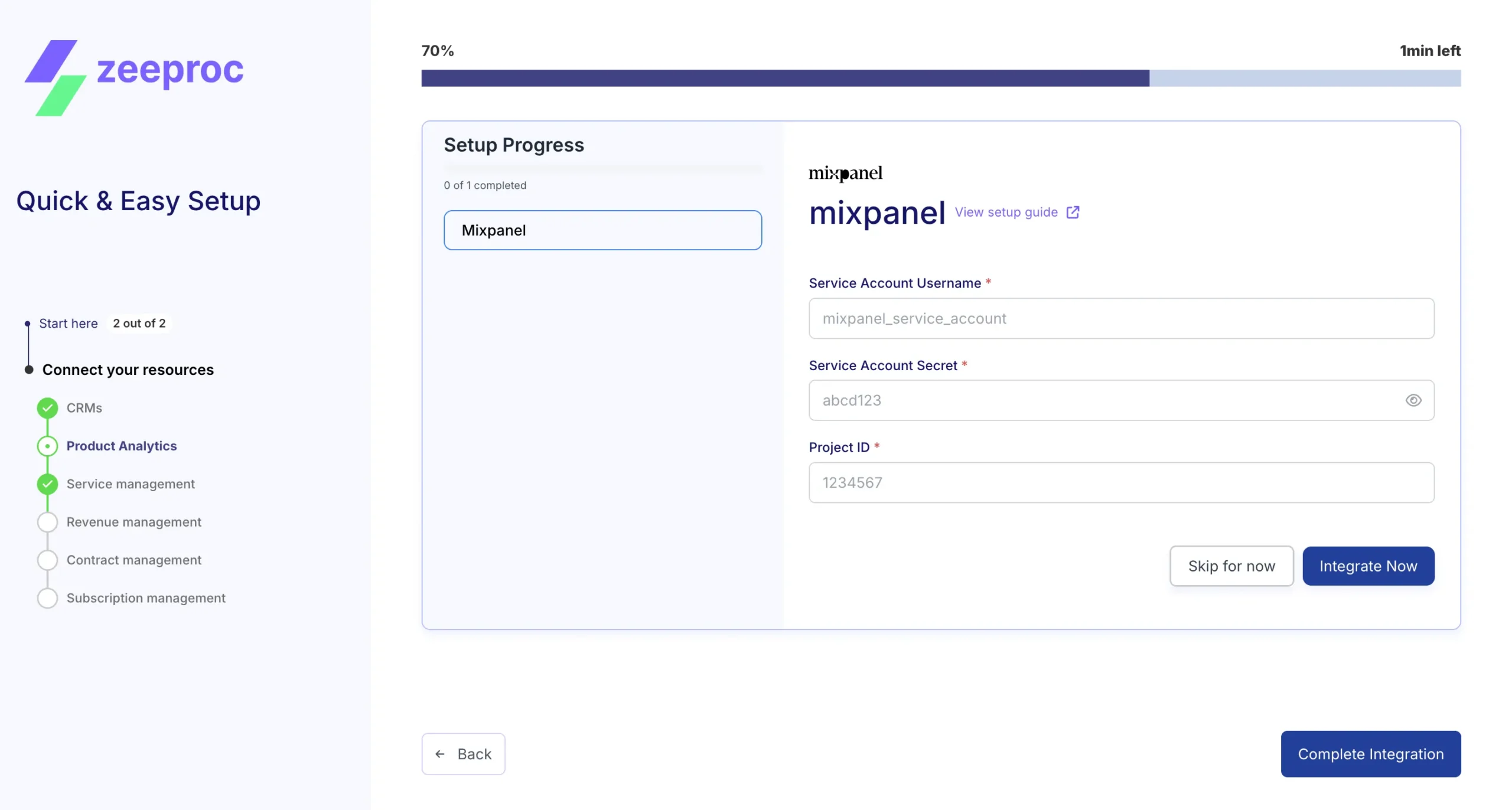
Mixpanel integration in zeeproc

How to find your Mixpanel credentials

  1. Log in to your Mixpanel account at mixpanel.com
  2. Click the gear icon (Settings) in the top-right corner, then navigate to Organization Settings > Service Accounts.
  3. Click + Add Service Account. Give it a descriptive name (e.g., "zeeproc integration") and assign it the Member role for the relevant project.
  4. Once created, Mixpanel will display the Service Account Username and Service Account Secret. Copy these immediately as the secret is shown only once.
  5. For the Project ID, go to Project Settings (under the gear icon). The Project ID is listed near the top of the page as a numeric value.
  6. Paste all three values into the zeeproc setup form and click Integrate Now.
Service Accounts are the recommended way to authenticate. You need Organization Owner or Admin access to create one. The secret is only shown once at creation, so save it securely.
Send to your developer
Hi,We need to connect Mixpanel to zeeproc. Could you create a Service Account and share the credentials?What we need: 1. Service Account Username 2. Service Account Secret 3. Project IDHow to do it: - Log in to mixpanel.com - Go to Settings (gear icon) > Organization Settings > Service Accounts - Click "+ Add Service Account", name it "zeeproc integration", assign Member role - Copy the Username and Secret (secret is shown only once!) - For Project ID: go to Settings > Project Settings, it is listed at the topYou need Org Owner or Admin access. Once ready, enter them in zeeproc at: https://app.zeeproc.comThanks!

HubSpot

Sync your HubSpot CRM data including contacts, companies, deals, and lifecycle stages. zeeproc uses OAuth2 for a secure, one-click connection.
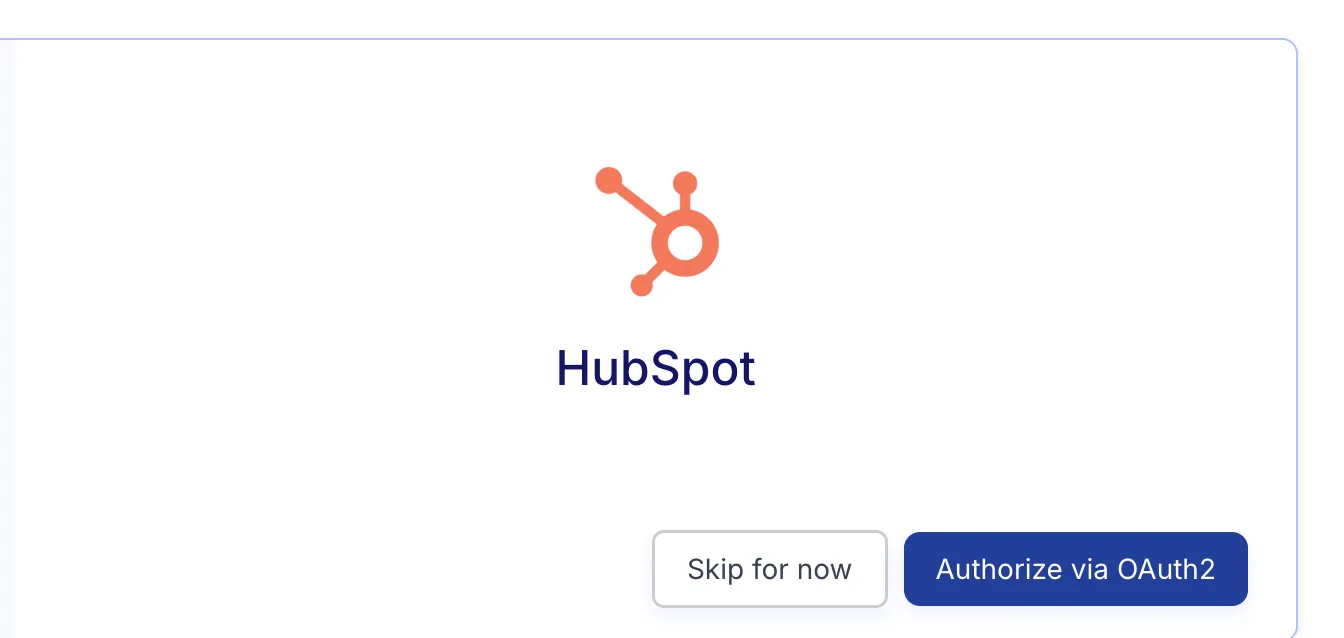
HubSpot OAuth in zeeproc
OAuth2 - No API keys needed

One-click authorization

Connecting HubSpot to zeeproc is straightforward. During the setup wizard, click Authorize via OAuth2. You will be redirected to HubSpot where you can choose the account to connect and grant zeeproc the required permissions.

You need to be a Super Admin in HubSpot to authorize integrations. If you are not an admin, share the setup link with your HubSpot admin or use the copy button below.

Send to your HubSpot admin
Hi,We are setting up zeeproc and need to connect our HubSpot account. Since it requires Super Admin access, could you help authorize the connection?Steps: 1. Log in to zeeproc at https://app.zeeproc.com 2. In the setup wizard, navigate to the HubSpot integration step 3. Click "Authorize via OAuth2" 4. You will be redirected to HubSpot - select our account and approve the permissionsNo API keys are needed. The whole process takes about 30 seconds.Thanks!

Salesforce

Connect Salesforce to sync accounts, opportunities, contracts, and revenue data. zeeproc supports both Sales Cloud and Service Cloud via OAuth2.
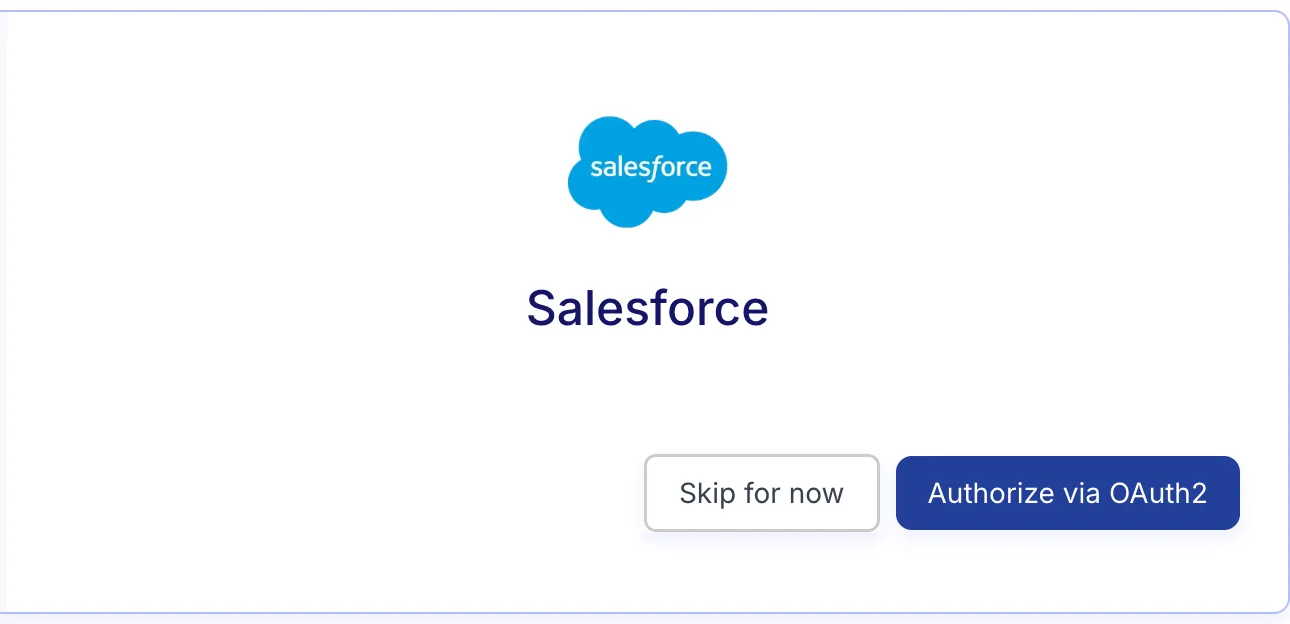
Salesforce OAuth in zeeproc
OAuth2 - No API keys needed

Secure OAuth2 connection

Click Authorize via OAuth2 during the zeeproc setup wizard. You will be redirected to the Salesforce login screen. Sign in with an account that has System Administrator or equivalent API-enabled permissions.

Salesforce requires that API Access is enabled in your org and your user profile has the "API Enabled" permission. If you see an authorization error, check with your Salesforce admin.

Send to your Salesforce admin
Hi,We need to connect our Salesforce org to zeeproc for customer success automation. The integration uses OAuth2 and requires an admin to authorize it.Steps: 1. Log in to zeeproc at https://app.zeeproc.com 2. Navigate to the Salesforce integration step in the setup wizard 3. Click "Authorize via OAuth2" 4. Sign in to Salesforce and approve the connectionRequirements: - Your Salesforce user profile must have "API Enabled" permission - You need System Administrator access (or equivalent) - API Access must be enabled for the orgNo API keys or tokens to manage. Takes about 30 seconds.Thanks!

Email Integration

Connect your team's email to enable conversation tracking, sentiment analysis, and automated follow-up workflows. Both Gmail and Microsoft (Outlook/Office 365) are supported via SSO.

Gmail / Google Workspace

Authenticate with your Google account via SSO. No API keys or app passwords required. Works with both personal Gmail and Google Workspace accounts.

Microsoft Outlook / Office 365

Authenticate with your Microsoft account via SSO. Supports Outlook.com, Office 365, and Exchange Online accounts seamlessly.

Email integration uses Single Sign-On (SSO) for both providers. Each team member connects their own inbox individually during onboarding. No shared API keys or admin configuration is needed. Your email data is encrypted in transit and at rest.
Send to your team
Hi team,We are connecting our email to zeeproc so it can track customer conversations and automate follow-ups. Each person needs to connect their own inbox.Steps: 1. Log in to zeeproc at https://app.zeeproc.com 2. Go to Settings > Email Integration 3. Click "Connect Gmail" or "Connect Microsoft" (depending on your email provider) 4. Sign in with your email account and approve the permissionsIt uses SSO, so no passwords or API keys are shared with zeeproc. Takes about 15 seconds.Please connect your inbox at your earliest convenience.Thanks!